Your network
folders. One
click away.

Anchor puts the folders on your NAS or server in your Mac’s menu bar. Add them once, then let Anchor connect automatically – or click one when you need it. For most setups, that’s it. Anchor takes care of the rest. No more hunting around. Everything’s right there.

Simple home setup · One NAS, three network folders, one automatic connection. Done.

01One place for your network folders

02Choose what connects – and what waits

03When a server returns, Anchor carries on

One NAS.
A few folders.

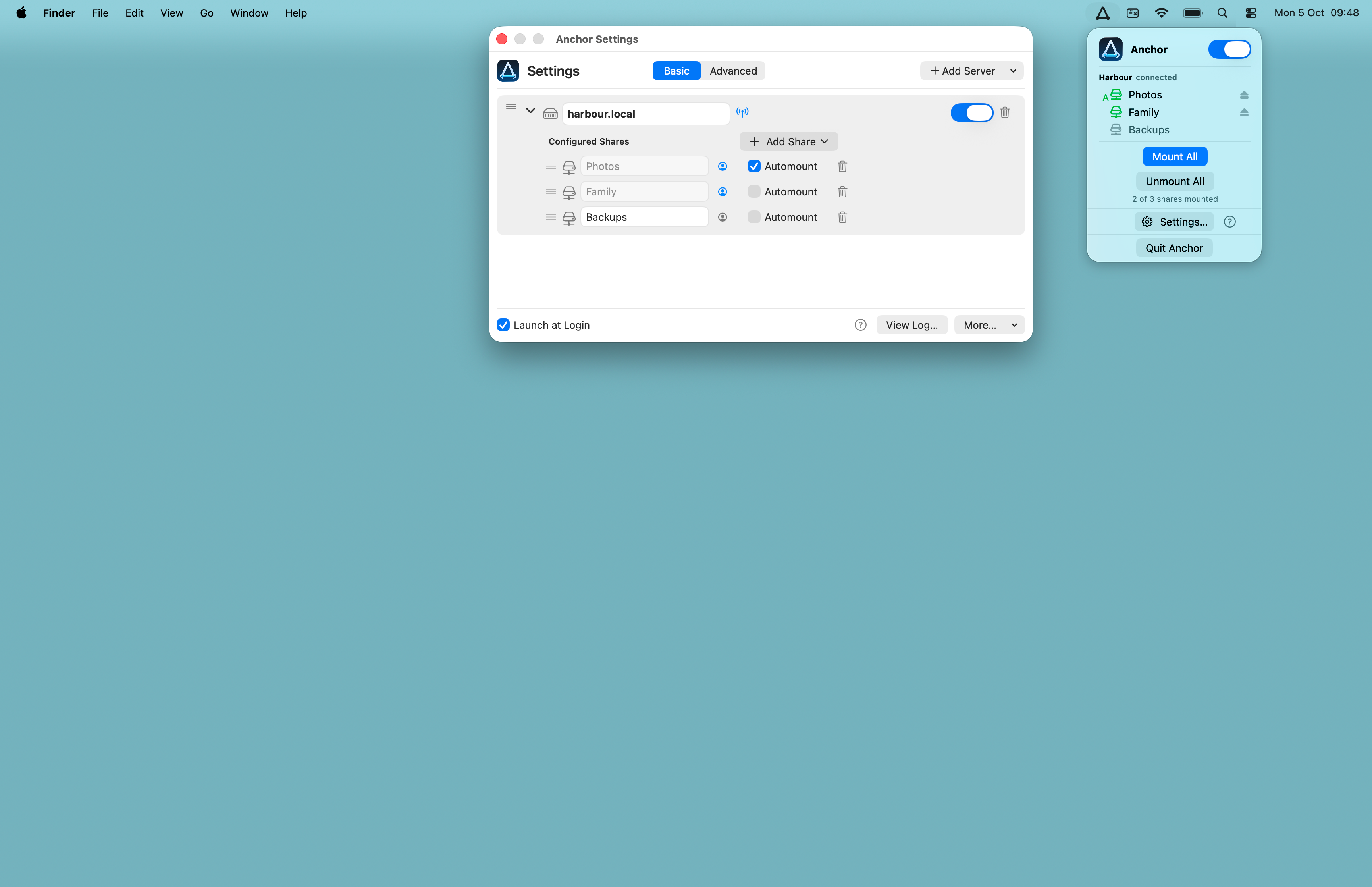
Add your NAS or server, configure your network folders and choose which should connect automatically. During setup, Anchor can look for servers on your network and help you choose from the shared folders they make available. Drag folders into your preferred order.

Basic Settings is reassuringly simple – set up in no time, great for many home networks.

Advanced Settings stays out of the way until you need it, then adds connection testing, individual folder controls and more flexible login details.

Home example settings
Home example, Basic settings beneath the macOS menu bar

Get set.
Go.

From first launch to fully configured in around a minute – and browsing your files in under two. Find your server, add its shared folders, choose Automounts and arrange them how you like.

Set up once, then forget about the network. Your folders are organised in one place, right where you need them.

Anchor First Setup
An initial single-server setup, shown in real time. (1 minute 40 seconds)In this example, the server had previously been accessed through Finder, so macOS had already saved its credentials. The same account is used for all shares.

More servers.
More shares.

Anchor groups shares by SMB server while keeping each one individually controllable. See what’s connected. Unmounted shares stay configured and ready when you are. If a server is asleep or offline, Anchor waits quietly and picks up when it returns.

Servers
Clear names and connection state for each server, with the option to temporarily disable an entire server.
Shares
Individual mounting, Automount and availability checks, with temporary disabling per share. Click to mount. Click again to open in Finder. Shares mount in their usual place in /Volumes.
Credentials
Optional Anchor Managed credentials for setups that need more control, with separate login details for individual shares.
Multi-server example · Automatic mounts on two servers, manually mounting individual shares with status feedback.

SMB. On purpose.

Anchor began with our own SMB shares. This version is deliberately focused on SMB servers and folders, with a clean interface that keeps the important controls close at hand – and the networking clutter out of the way.

Anchor

US$12.99

One-off licence. No subscription.

Shown in USD. Local currency and taxes calculated at checkout.

1 user · 3 Mac activations · 3 enabled servers

More than enough for most personal setups.

What’s included

  • No fixed limit on shares per server
  • Quiet automount without opening Finder
  • Mount or open shares straight from the menu bar
  • Automatic recovery after sleep, network or server interruptions
  • Pause shares or whole servers without removing them
  • Drag-and-drop reordering for servers and shares
  • Secure credentials in macOS Keychain
  • Live status and activity logging
  • Unmount All before you disconnect or head out
  • Status at a glance in the menu bar

Need more servers? Get in touch.

Team or organisation? Contact us.

Try Anchor on
your network.

Start a fully functional 14-day trial. No account or card required. Use Anchor with your own setup, in your own time. If it earns its place, we’re here when you’re ready.

Download