From your first server to the finer details. Find what you need, get back to your files.
01
Getting started
What’s the easiest way to set up Anchor?
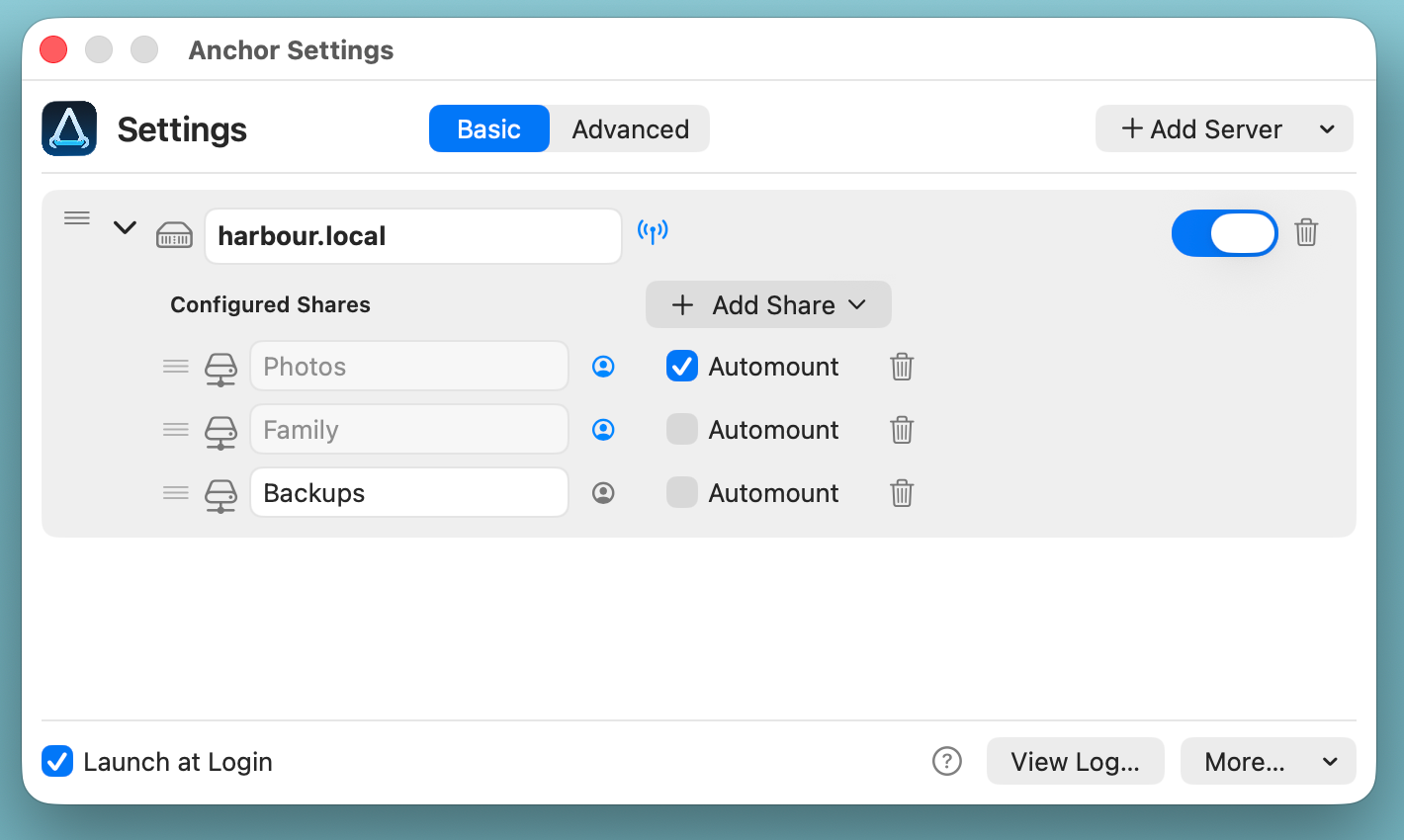
Open Settings, choose Add Server → Find SMB Servers…, then select your server. Use Add Share to choose the shares you want. Turn on Automount for shares you normally want kept connected.
For most setups, leave credentials set to Automatic and enable Launch at Login.
Basic keeps setup simple. Advanced shows the additional controls when you need them.
Do I need to know about networking to use Anchor?
Very little – that’s the point of Anchor. For most setups, you just need to find your server, choose its shared folders and decide which should connect automatically. Anchor takes care of the routine connection work.
Should I use Basic or Advanced?
Basic gets a straightforward setup running quickly. When you add a share, Anchor tries to connect to it straight away.
Advanced lets you review or check a new share before mounting it. It also adds individual share controls and detailed credential settings. You can switch between Basic and Advanced without losing your setup.
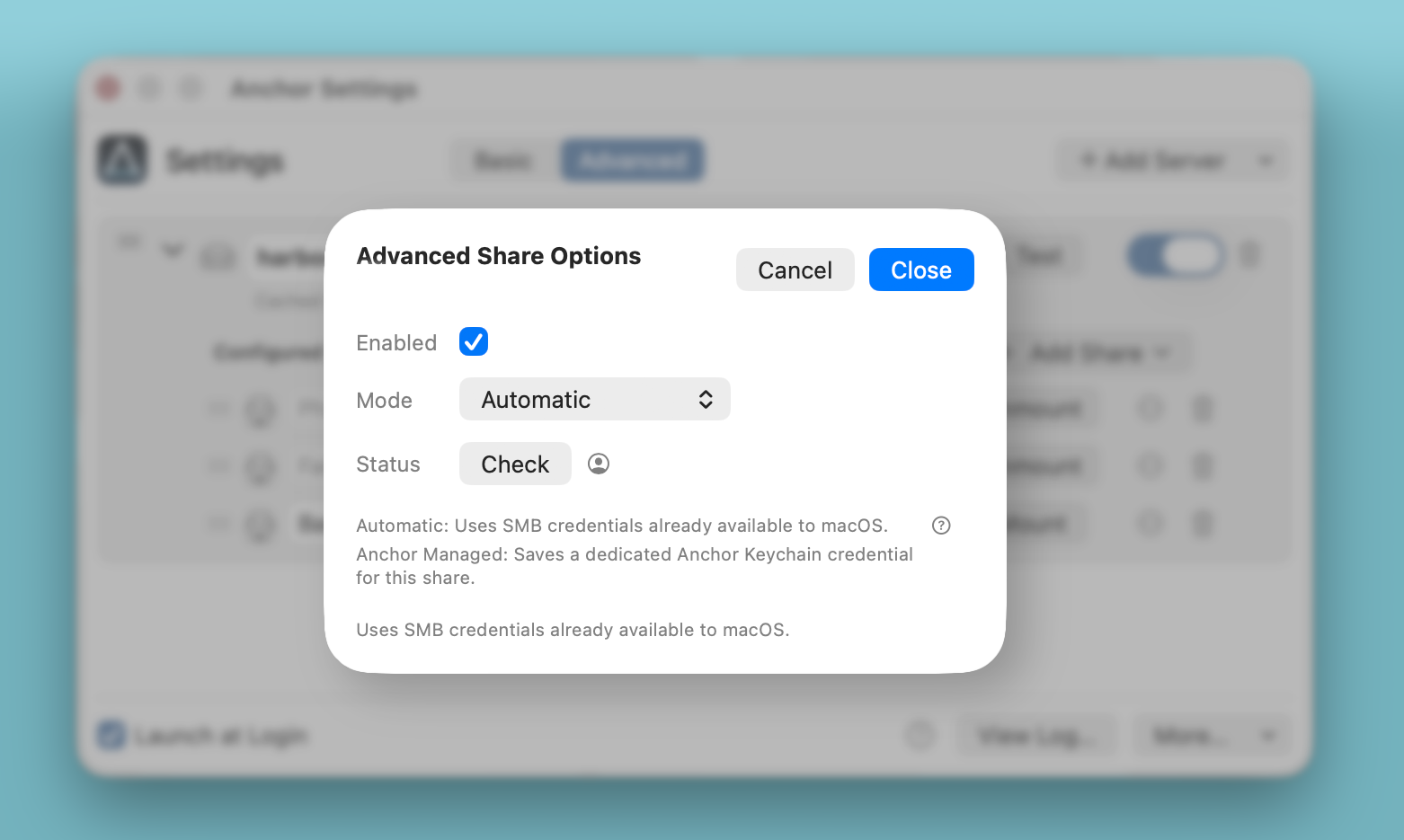
Each share row includes Check, Automount and Mount/Unmount. Click the circled ellipsis (…) to open Advanced Share Options, where you can choose Automatic or Anchor Managed credentials, check those credentials, and enable or disable the share.
I can’t see my server.
Choose Add Server → Find SMB Servers…. If it does not appear, choose Enter Server Details… and enter its hostname or IP address. A server does not have to appear in discovery for Anchor to use it. If discovery finds nothing, also check that Anchor has Local Network access in macOS System Settings.
I can’t see my share.
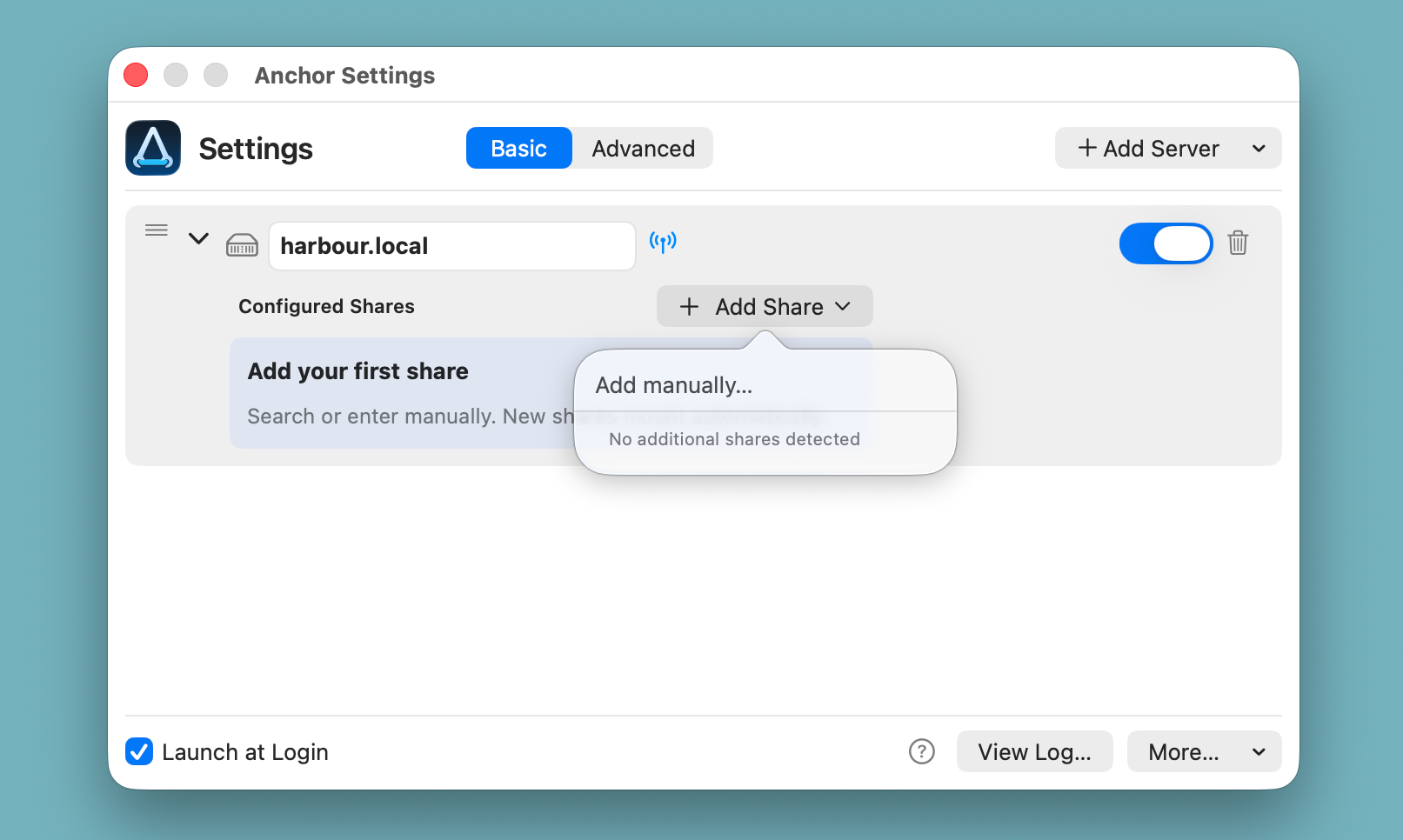
Choose Add Share to search for available SMB shares. If yours does not appear, choose Add manually… and enter its exact share name. Some servers restrict which shares they list, even when you have permission to connect directly.
Use Add manually when the share you need is not listed.
02
Automount and everyday use
What does Automount do?
With Automount enabled, Anchor reconnects a share when the server becomes available again – for example after your Mac wakes or the network reconnects. It gives the network time to settle before trying.
What happens if I unmount a share myself?
Anchor respects that choice instead of immediately mounting the share again. You can reconnect it yourself whenever you need it. To resume normal Automount behaviour, switch Anchor off and back on.
How do I open a share?
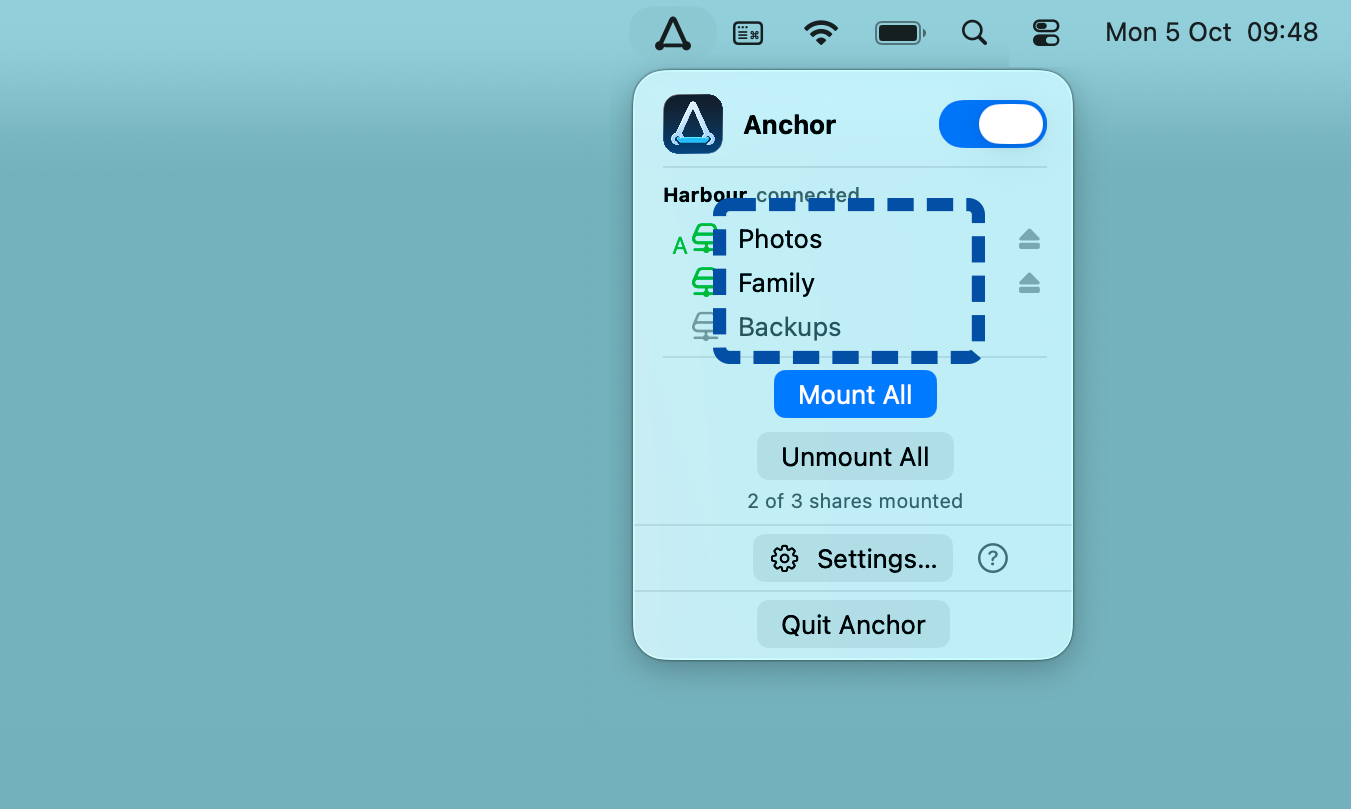
Click an unmounted share in the Anchor menu to mount it. Once mounted, click it again to open the volume in Finder.
In the menu bar dropdown, share icons are green when mounted, grey when unmounted, and orange if mounting needs attention.
Use the eject icon beside a share to unmount it.
Mount All mounts enabled shares. Click Unmount All twice to confirm unmounting mounted shares. Unmount All pauses automatic remounting; switch Anchor off and back on to resume Automount.
Click an unmounted share to mount it. Click a mounted share to open it in Finder.
How do I change the order shares mount?
Use the three-bar drag handles in Settings to arrange servers and their shares how you want. The menu bar dropdown and mounting sequence follow that order.
Where does Anchor mount shares?
Anchor uses the standard macOS /Volumes location. Your mounted shares also appear in Finder.
Why can’t I edit or remove a share or server?
Anchor locks a mounted share to prevent changes while it’s in use. Unmount the share first, then edit or remove it in Settings. To edit or remove a server, unmount all of its shares first.
If a share won’t unmount, check whether Finder or another app still has a file open on it.
What does disabling Anchor, a server or a share do?
Your configuration stays saved. Disabling Anchor or a server does not unmount shares that are already mounted.
Anchor – pauses automatic behaviour.
Server – stops monitoring that server and removes it from the menu bar dropdown.
Share – disabling it in Advanced Share Options prevents Anchor from mounting that share and removes it from the menu bar dropdown.
03
Credentials
Should I use Automatic or Anchor Managed credentials?
If you're unsure what to use, start with Automatic. It lets macOS connect using SMB credentials already available to the system. Anchor does not read your macOS SMB password.
Use Anchor Managed when a share needs a particular SMB username and password, for example when different accounts are used on the same server. Its password is stored in your macOS login Keychain, not in Anchor’s settings.
A person symbol beside the share in Settings identifies Automatic credentials; a key symbol identifies Anchor Managed credentials.
In Advanced Settings, click the circled ellipsis (…) beside the share to open Advanced Share Options. Choose Anchor Managed, enter the SMB username and use Set Password….
Use Check beside Status to attempt to mount an unmounted share using its selected credential mode. If the share is already mounted, Check reports its current state without retesting newly entered credentials. Unmount the share first for a fresh credential test.
The credential symbol is blue when Check succeeds, orange when it needs attention, and red when it fails. A dim grey symbol means it hasn’t been checked. Hover over the symbol for more detail.
Advanced Share Options
Automatic isn’t connecting. What should I try?
Connect in Finder
In Finder, choose Go → Connect to Server… and connect to the share once. Use its server and share name, or include a username if one is required:
smb://server/sharesmb://username@server/share
Replace the example names with your server address, share name and, if needed, SMB username.
Do not put the password in the address.
Try Anchor again
Once Finder connects successfully, try Anchor again. If it still won’t connect, try Anchor Managed credentials for that share.
Check the server and share
If neither mode works, check that your Mac can reach the server and that the server address, share name, account details and permissions are correct. Try connecting to the same share in Finder using the same account.
In Advanced Settings, Test checks server reachability; Check attempts to mount an unmounted share using its selected credential mode.
I use different SMB accounts on the same server. What should I do?
Use Anchor Managed when you need precise control over which account a share uses. If several shares on one server use different identities, using Managed credentials consistently is usually the most predictable setup.
04
Troubleshooting
My server won’t connect.
Check that the server is on and that your Mac can reach it. Confirm that its hostname or IP address is correct. In Advanced Settings, use Test beside the server to check whether Anchor can reach it. If the server passes Test but a share still will not mount, check the share separately.
The server’s Test symbol is blue when the server is reachable and red when it cannot be reached. Orange means the server is reachable using a previously saved IP address. A dim grey symbol means it hasn’t been tested. Hover over the symbol for more detail.
My share won’t connect.
In Advanced Settings, use Check beside the share. Confirm its name, server permissions and SMB account. If Finder can connect but Anchor cannot, try Anchor Managed credentials for that share. A server can be reachable even when one of its shares is not.
In Advanced Settings, Server Test checks whether Anchor can reach the SMB server without mounting any shares. Share Check attempts to mount an unmounted share using its current settings and credential mode. A server can pass Test while one share still has a name, permissions or credentials problem.
If the share is already mounted, Check reports its current state without retesting newly entered credentials. Unmount it first for a fresh credential test.
Finder still shows a share even though Anchor says the server is offline.
During a network interruption, Anchor may report the server offline while Finder still shows a share mounted earlier. macOS can take longer to remove an unavailable volume from Finder, so seeing it there does not mean the share is still reachable.
Why won’t a share unmount (eject)?
Finder, another app or a Terminal window may still be using it. Close any files or apps using the share. If Terminal is open in that folder, move to a local folder, then try again. Anchor does not force-unmount a busy volume.
Anchor can’t see the local network.
Open System Settings → Privacy & Security → Local Network and make sure Anchor is enabled.
Launch at Login says it needs approval.
Use the control beside Launch at Login in Anchor Settings. Anchor will take you to the relevant macOS setting when approval is required.
05
Licence
How does the trial work?
Anchor includes a fully functional 14-day trial. No card is required.
Open Settings → More… → Licence…, paste your licence key and click Apply.
How many Macs can I use?
A Personal licence is for one individual user and includes up to 3 Mac activations and 3 enabled servers. Different macOS user accounts count as separate activations.
Enabled servers count toward the limit even when they are offline. You can keep additional servers configured in a disabled state.
Can I move an activation?
Yes. Deactivate Anchor in the Licence window before activating it on another Mac or macOS user. You can also view and remove activations through the online licence portal.
Why doesn’t Anchor have more advanced network controls?
Anchor grew out of the tool we wanted to use ourselves, and thought others might find useful too. A simple, Mac-like way to keep network folders connected without constantly thinking about them. Add your servers and shares, and let Anchor handle the connection work quietly in the background.
That simplicity is deliberate. There’s plenty going on behind the scenes, and enough control for most setups, including more advanced ones. But Anchor isn’t trying to be an all-purpose networking toolbox.
Anchor doesn’t currently wake servers or manage VPN connections. It can use an existing VPN connection if the configured server address is reachable.
We’ll continue developing Anchor and exploring new capabilities, but always with the same aim: useful power where you need it, without unnecessary complexity everywhere else.
Still need a hand?
Tell us what you’re trying to connect and what happened. If possible, include your Anchor and macOS versions and any error message. A short note is fine.